



The best webcam should make you look your best, no matter if you're in a dimly lit bedroom or home office. I've tested all the options out there to find the best ones to grab, including options best suited to video calls at work and those intended for streaming to your adoring fans.
If you're looking for the best webcam overall, that would be the Emeet Pixy. It's a 4K webcam at 1080p prices—that's what we like to see—and it comes with smart tracking if you have any need for that. If you want to save some cash, our budget pick is half as much, the Elgato Facecam Neo.
Many of these webcams support 1080p, some at 60 fps, and a few at 4K, which adds to the price tag. If you're perfecting your streaming set-up, you might want that higher frame rate capability, but you really want a webcam that deals well with the lighting conditions wherever you're streaming from. An extra light will go a long way to improving picture quality.
August 7, 2026: Changed our top picks, including the Emeet Pixy as our new best webcam and Elgato Facecam Neo as best budget pick. June 12, 2026: Added the Yolocam S3 as best 4K and Emeet Pixy as best tracking.

James is PC Gamer's resident 'webcam guy' and has at least three to hand at almost every moment. As a lover of video and begrudging attendee of meetings, he knows his way around 1080p and 4K picks. In this guide are the best he's managed to get his hands on.
The best webcam


✅ You want 4K for 1080p money: The Pixy has a strong value proposition; we don't usually recommend 4K for most but when it's this price, why not?
✅ You want/need tracking: It's not for everyone but if you are planning to waltz around your room on a video call, this is the cam to do it with.
❌ You care about bulk: The Pixy is a chunky thing, and the more expensive Obsbot Tiny 2 Lite does a similar job at a smaller size.
The Emeet Pixy is my pick for the best webcam. For a long time, we recommended the Elgato Facecam Mk.2 for its excellent image quality at 1080p, and our assumption has always been that, for most gamers, 1080p is plenty. However, the 4K-capable Emeet Pixy is now cheaper that the Facecam Mk.2, making it absurdly good value.
Capable of recording 4K footage at 30 fps and 1080p up to 60 fps, the Pixy is a great camera in most environments. If you don't need or use 4K, then fine, it's there if you need it and no loss to the 1080p image.
The Pixy can literally follow you around the room, using a motorised gimbal built-into its stand. Furthermore, it can focus on specific places, items, or people, should you so wish, and its autofocus is one of the sharpest out there right now.
One thing I didn't like much about it is that I found the sensor a tad overexposed. It just adds a certain brightness and loses some quality when placed near a window. I still wouldn't call it bad, but it could benefit from some tweaking if you are in a high-light environment.
At its original MSRP (around $160), I found the Pixy to be of middling value against its competition; however, with a seemingly permanent discount down to around the $100 mark, I can't think of a single choice at its new price point I'd pick instead.

Read our full Emeet Pixy review.
The best budget webcam
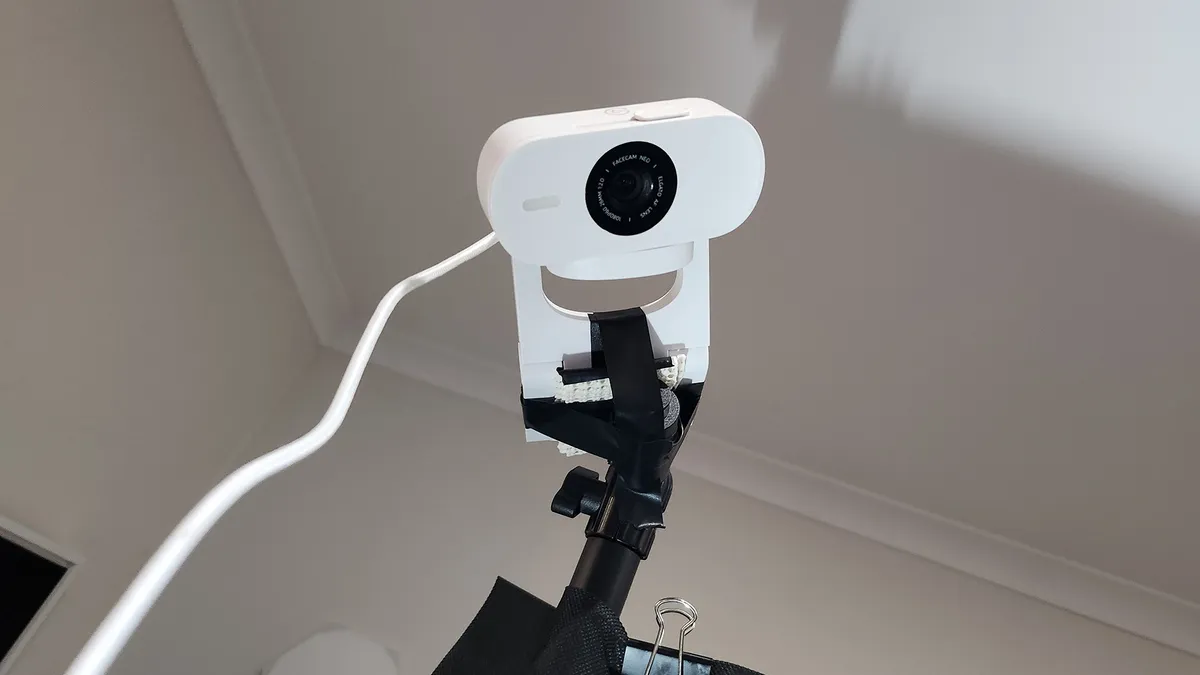


✅ You're after a simple plug and play camera: This camera works on just about any device, be it desktop, laptop, or even iPad.
✅ You want a reasonably priced HDR camera: If your desk setup is permanently backlit by a window, the Facecam Neo has you covered.
❌ You need a snappy autofocus: That's the one thing majorly lacking on the Facecam Neo.
Most readers can stop here. Unless you're looking for specific features in a webcam then there are few better than the Elgato Facecam Neo. It's both the best budget webcam and the one that makes the most sense for the average PC user.
The Elgato Facecam Neo has been around for years but it only recently got upgraded to the coveted spot of 'best budget webcam' as price cuts since its launch have made it incredibly affordable.
It just ticks pretty much every box for a webcam. Its sharp 1080p image, paired with a decent field of view and great autofocus, make it a fantastic video conferencing choice. For a working world filled with Google Meets and Zoom calls, it works a treat for not a whole lot of money.
It is missing a microphone (which could be a boon to some) and is limited to a mere 30 fps in HDR mode, but HDR really helps punch up the image quality in some lighting situations.
If you're looking for a webcam that will deliver beautiful, slick, high-resolution content, then of course you are going to have to look elsewhere on this list, like the Yololive Yolocam S3 or Emeet Pixy. And spend more, too. In fact, you don't need to spend that much more to get a better webcam in the form of the Streamplify Cam, but the Facecam Neo is still a decidedly more budget option.

Read our full Elgato Facecam Neo review.
The best 4K webcam
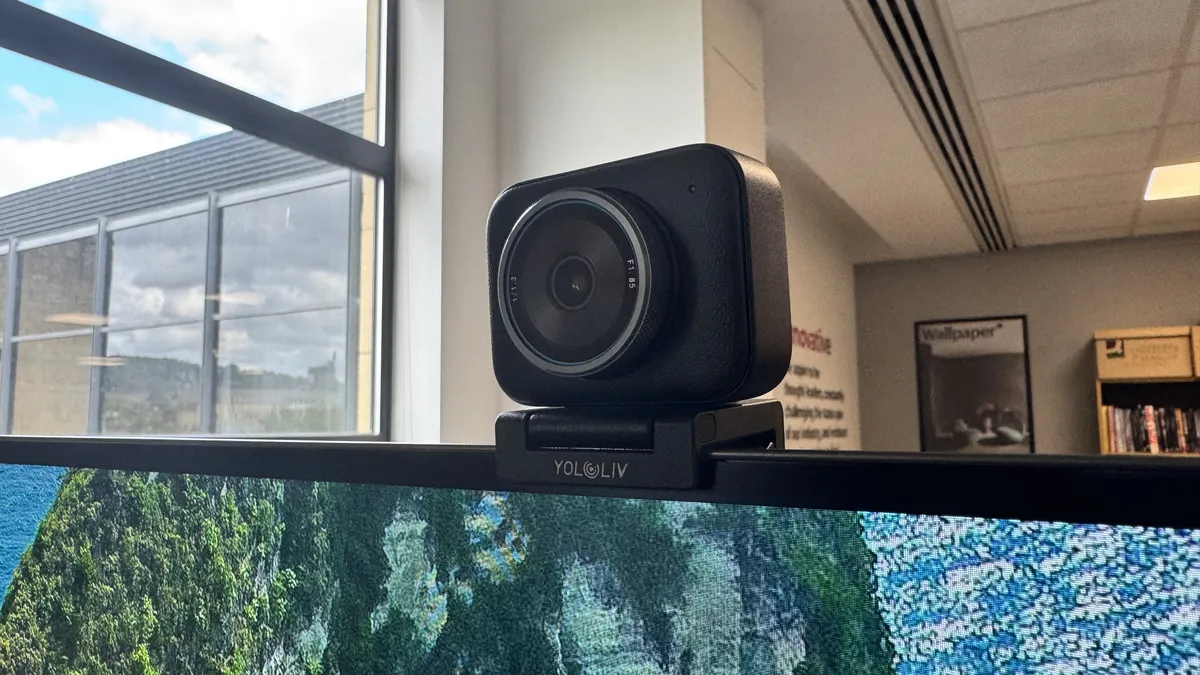

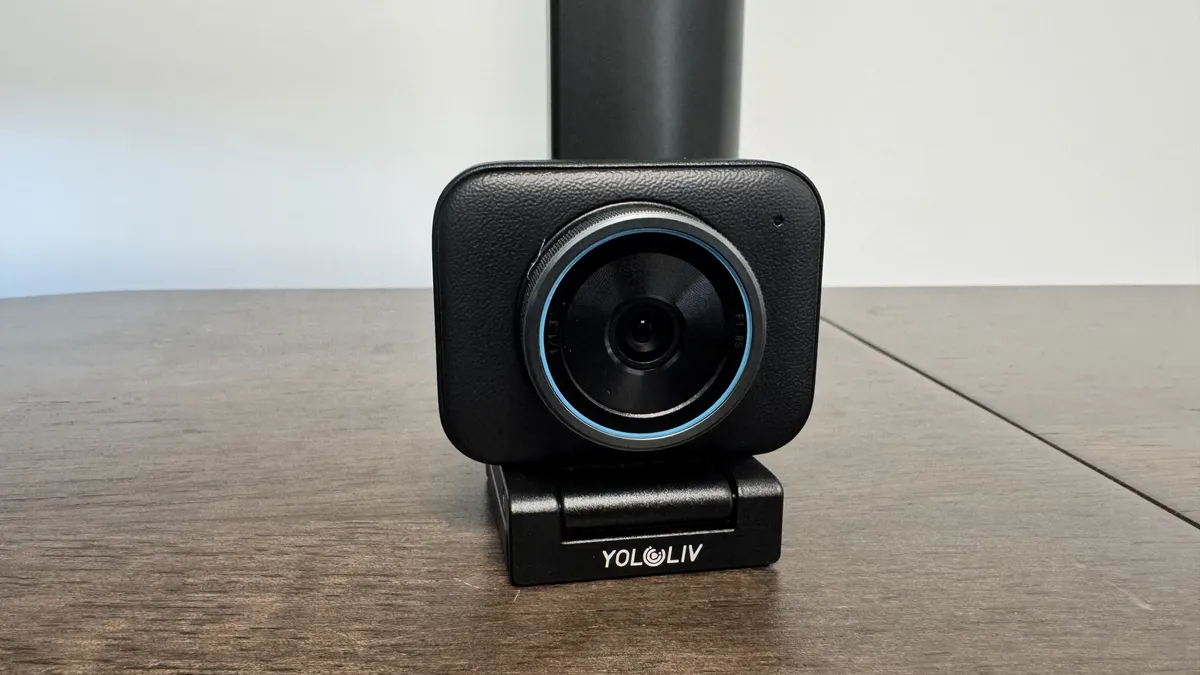
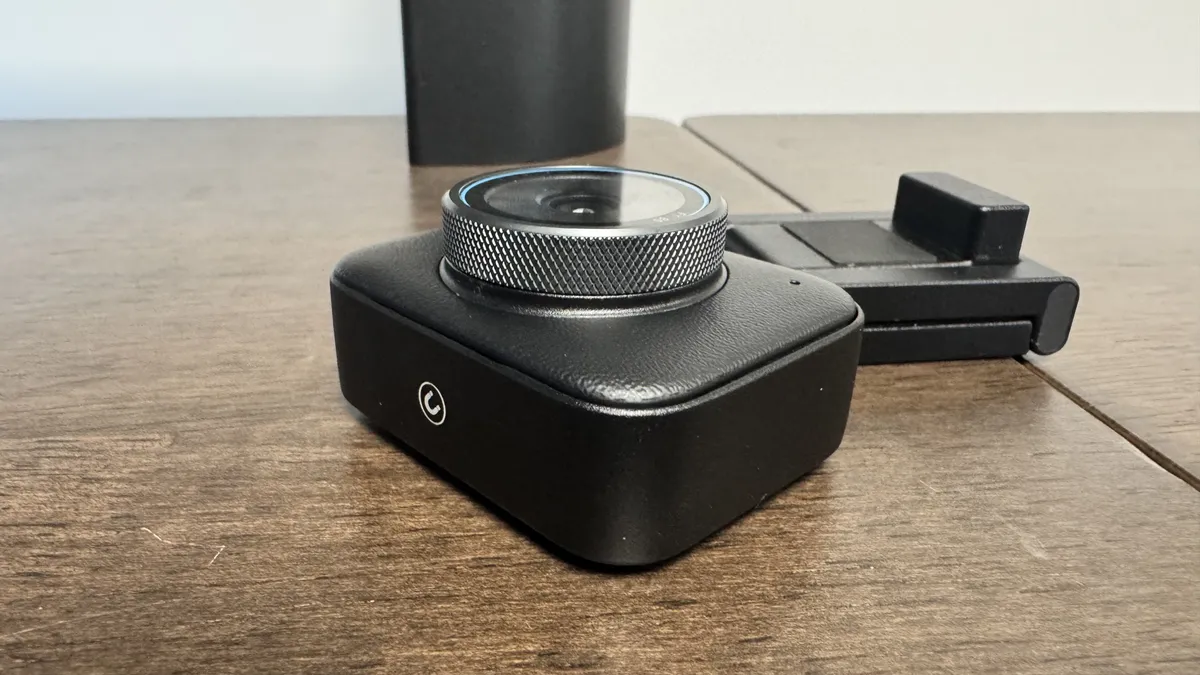


✅ You want to record videos: The S3 is undeniably impressive in terms of quality, and works great for filming video.
❌ You want no fuss: You can get 4K webcams that are easier to use straight out of the box than the Yolocam.
The Yololive Yolocam S3 is the best 4K webcam right now, and for one main reason: quality. Yololiv says you get DLSR-like capture from the Yolocam S3, and from my time testing it, I'd say it's as close as I've gotten from a webcam.
The Yolocam S3 can handle varied textures, plays well with different lighting conditions and generally looks excellent in motion. It also comes with a built-in bokeh effect that adds something truly cinematic to its capture. I've tried a bunch of webcams, and not one of them has got so close to something you'd expect to see from a more professional camera. I do think it emphasises blacks and shadows in ways that are a little less natural than some webcams, but still look great in their own right
One thing I do think it misses is a plug-and-play style setup. I'd personally opt to customise the white balance and turn off the vignette correction for a more natural look before actually using it. It's certainly fine otherwise, but a little tweaking will really make it pop. And it certainly pops.
If you just want something quick for a meeting, however, there are better choices. Not only is it quite expensive at an MSRP of around $200, but it doesn't come with a built-in microphone. That means having to grab a mic or headset should you want to do a quick call. That's not a major problem for me, but it does make it ever so slightly less plug-and-play than some other choices.
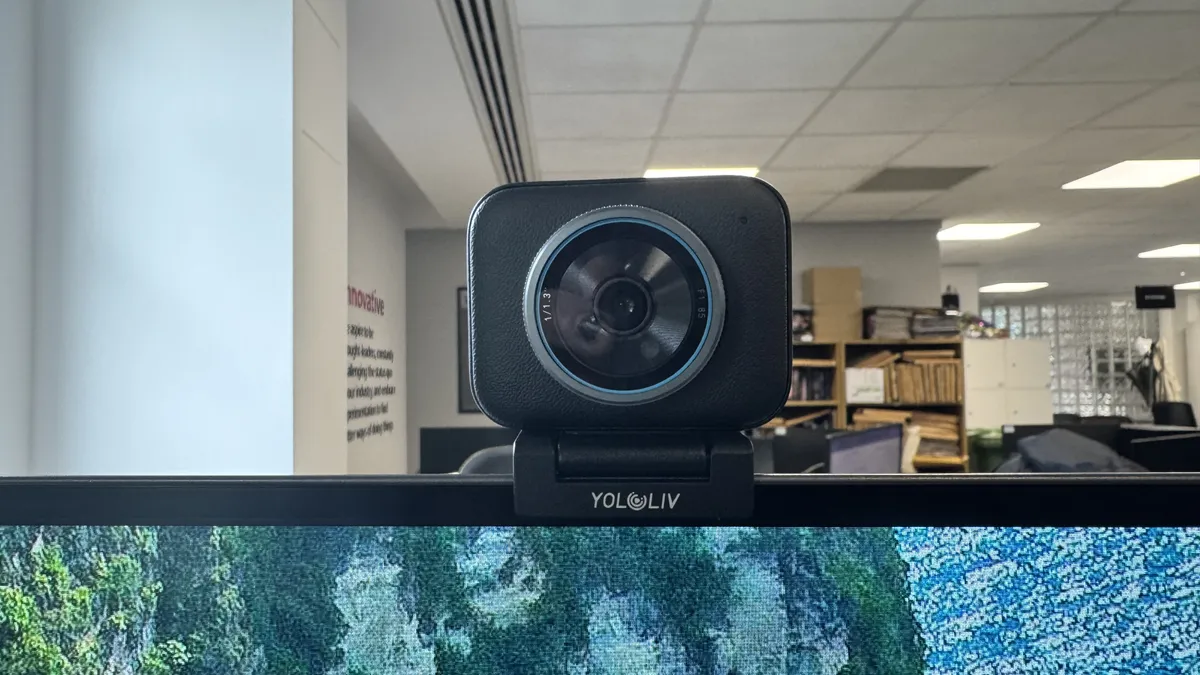
Read our full Yololiv Yolocam S3 review.
Webcam FAQ
What resolution webcam do I need?
If you plan to record at full-screen resolution, you may want to look at a 4K webcam. However, if you plan on streaming or keeping your webcam confined to only a small portion of your screen, as most do, the higher resolution will likely be lost, Sticking with a 1080p webcam should be more than enough for most folks, though a 4K webcam could do both.
Can I use my phone as a webcam?
If your phone isn't incredibly old, yes, you should be able to use your phone as a webcam. You can do this with the help of software such as Droidcam, which allows you to connect your phone to your PC and have it pick up the phone's camera as a webcam source. This should work with all kinds of apps, including, for instance, Zoom, Discord, and OBS. You simply have to download the app on your phone and on your PC and then pair them.
If you use a phone that you already own this might be a very cheap way to get up and running with a faux webcam on your PC. It should be cheaper than a budget webcam, with the only potential expense being a stand.
This option might be cheaper even if you end up buying a separate phone to use as your webcam. For instance, a second-hand iPhone that's a few years old might work well and could end up being cheaper than a cheap standalone webcam. Just beware of phones that are too old because they'll have worse battery life. Using your phone as a webcam can drain its battery and even potentially cause battery health problems if it's not a modern one with good battery management.
What should I look for in a webcam?
The process of selecting the right webcam is much like choosing a good camera. Most of the metrics we use to determine camera quality also apply to webcams. You should pay attention to image quality, color accuracy, focus speed, and customizable features. Although many of us have dedicated microphones, the onboard microphone can come in handy too.
One of the greatest determiners of image quality is the amount of noise present in an image. Most webcams have no trouble producing good image quality when lighting is ample. The extra quality of the best webcams is more accurately reflected in low light; however, the camera needs to compensate for the lack of light digitally. Generally speaking, more expensive webcams come with higher quality sensors and usually have less pesky color blots compared to cheaper ones.
The other crucial aspect is the color of the images. Before we even begin to examine the color quality, we should pay attention to the white balance. White balance gauges the temperature of the lighting from your surrounding environment and sets the white point accordingly. The image may be masked with a blue or yellow tint if the white point is incorrectly set. Unless a tuning utility is included, the webcam's processor usually automatically adjusts the white balance.
Next is exposure, saturation, and contrast—all three are equally important. Exposure is the brightness of the image, saturation is the depth of the colors, and contrast is the difference between black and white. Brightness ensures that you can be seen clearly, while saturation and contrast make your images pop. Again, unless the software is included, the webcam's processor normally adjusts these settings automatically. More expensive webcams are more adept at replicating the most accurate scene.
How do we test webcams?
Discord's video conferencing feature has taken the world by storm. As such, we've included it in our testing software suite alongside more staple corporate video calling software, such as Google Meets and Zoom. We test the video quality in both apps at the maximum supported resolution. OBS is still our choice go-to app for streaming and video recording.
We use OBS to stream and record videos from each camera, testing them both fullscreen and scaled down to a "face cam" size. We also use each manufacturer's webcam software to get a feel for it. We take the highest possible resolution pictures with each webcam and manually adjust settings like white balance, brightness, auto-focus, and others where applicable.
We tend to use the latest and greatest webcams ourselves for a period of at least a few weeks to really get to grips with what it's like to use the product day-to-day.
Software for webcams is just as critical—if not more so—than other peripherals. Although many streaming and conferencing apps have built-in adjustment options, using the manufacturer's driver software allows you to adjust the settings globally. So we make sure to see how this all stacks up in actual use.
Aside from the video quality, we also look at their ease of use. Each manufacturer has a different method of attaching a webcam to the monitor, so we test them across different monitor shapes and sizes. We consider whether the webcam cord is long enough to reach from the top of a monitor to a case underneath a desk.