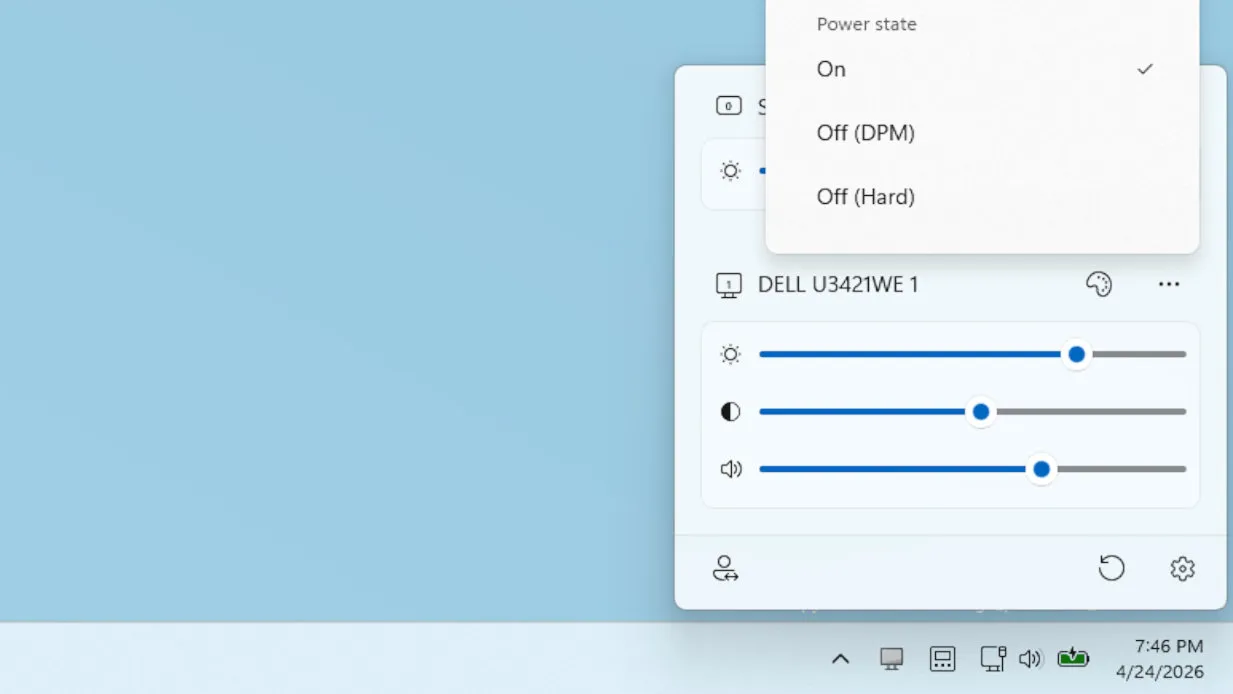
PC enthusiasts might feel that Microsoft has been slowly stripping customisation control options out of Windows, but the truth of the matter is that they haven't actually gone. They've just been moved into a separate piece of software called PowerToys, and if you're the kind of PC user who uses lots of big monitors at the same time, the latest version is a must-have.
You can grab v0.99.1 PowerToys from its dedicated GitHub page, though it was v0.99 that added the extra features I'm about to mention (the update just fixes a bunch of bugs).
The two that stand out for me are Grab and Move, and Power Display, though there's an awful lot more on offer in the app. Starting with the former, when activated, you can grab hold of a window and then move or resize it, without ever having to 'select' the window (i.e. make it the focus).
For example, if the window you're after is partially hidden behind other windows, with Grab and Move active, you can get your mitts on it 'through' the ones in front. Sure, you can always alt-tab to a window you're after, but this is perhaps more convenient to do if you have multiple, large monitors.
Grab and Move doesn't bring a window to the front of the others: it stays where it is in the depth order of things, but I've found it a blessing for quickly sifting through things, without having to bring them to the front.
And then there's Power Display. To be brief, it brings up various controls for your monitors on the desktop when you fire it up. On my PC, it defaulted to just showing brightness, contrast, and volume, but after clicking on some options in PowerToys (and ignoring the advisory warning that this may mess things up), I can now switch inputs and even power it down.
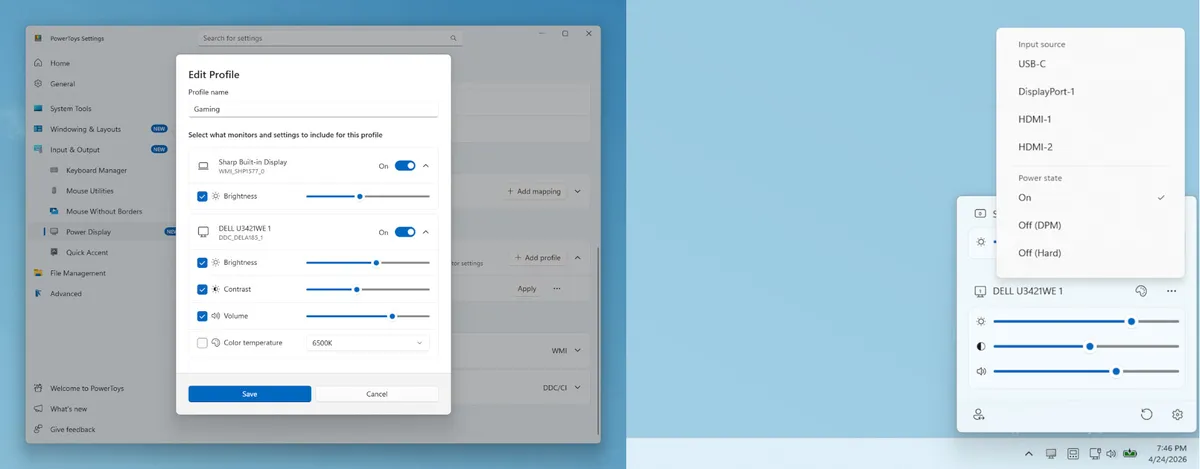
You can also set up multiple profiles that you can quickly switch between, so you can have your monitors dimmed a bit for work, but then much brighter for gaming. All without having to delve into the monitor's own OSD.
Neither feature is what you'd call revolutionary, and I dare say that there will be some readers using a Linux distro who will be wondering why it's taken so long for Microsoft to catch up. But hey, at least PowerToys exists, and it's regularly updated with new gadgets to play around with.
Now, if you'll excuse me, I've got a bunch of windows scattered around various screens that need wrangling.
1. Best overall / 4K:
MSI MPG 321URX
2. Best budget 4K:
Asus ROG Strix XG27UCG
3. Best 1440p:
MSI MPG 271QRX
4. Best budget 1440p:
KTC H27T22C-3
5. Best 1080p:
AOC Gaming C27G4ZXE
6. Best Ultrawide:
Gigabyte MO34WQC2
7. Best budget ultrawide:
Xiaomi G34WQi
8. Best 32:9:
Samsung Odyssey OLED G9
9. Best dual-mode:
Alienware AW2725QF