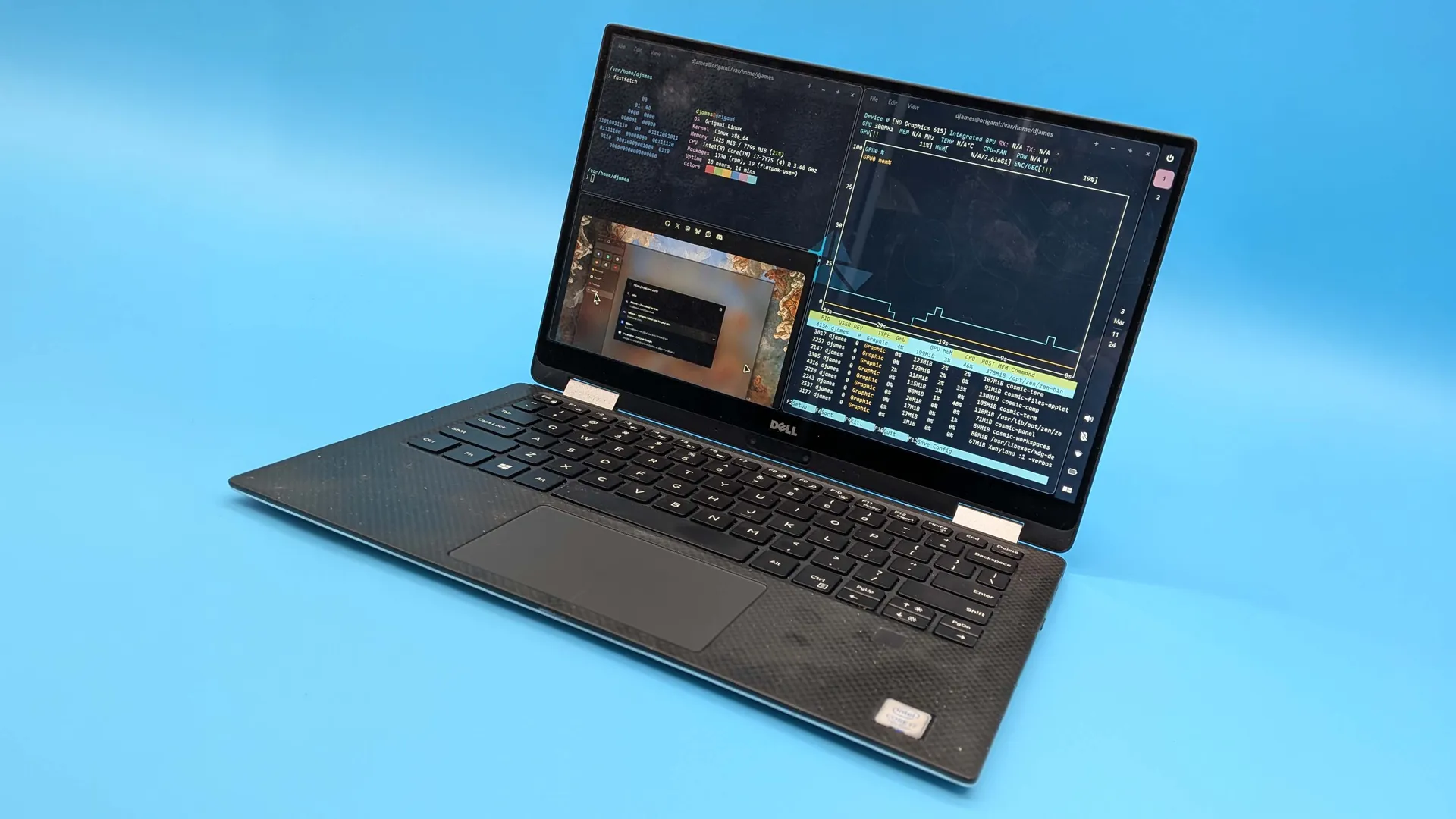

This month I've been... on the terminal tip. With Linux finally playing nice with gaming laptops, and sweet-talking our IT team to give me access to my work accounts, the move away from Windows has been a joy. I'm a computer nerd and learning how a new computer works is always a pleasure. Well... mostly.
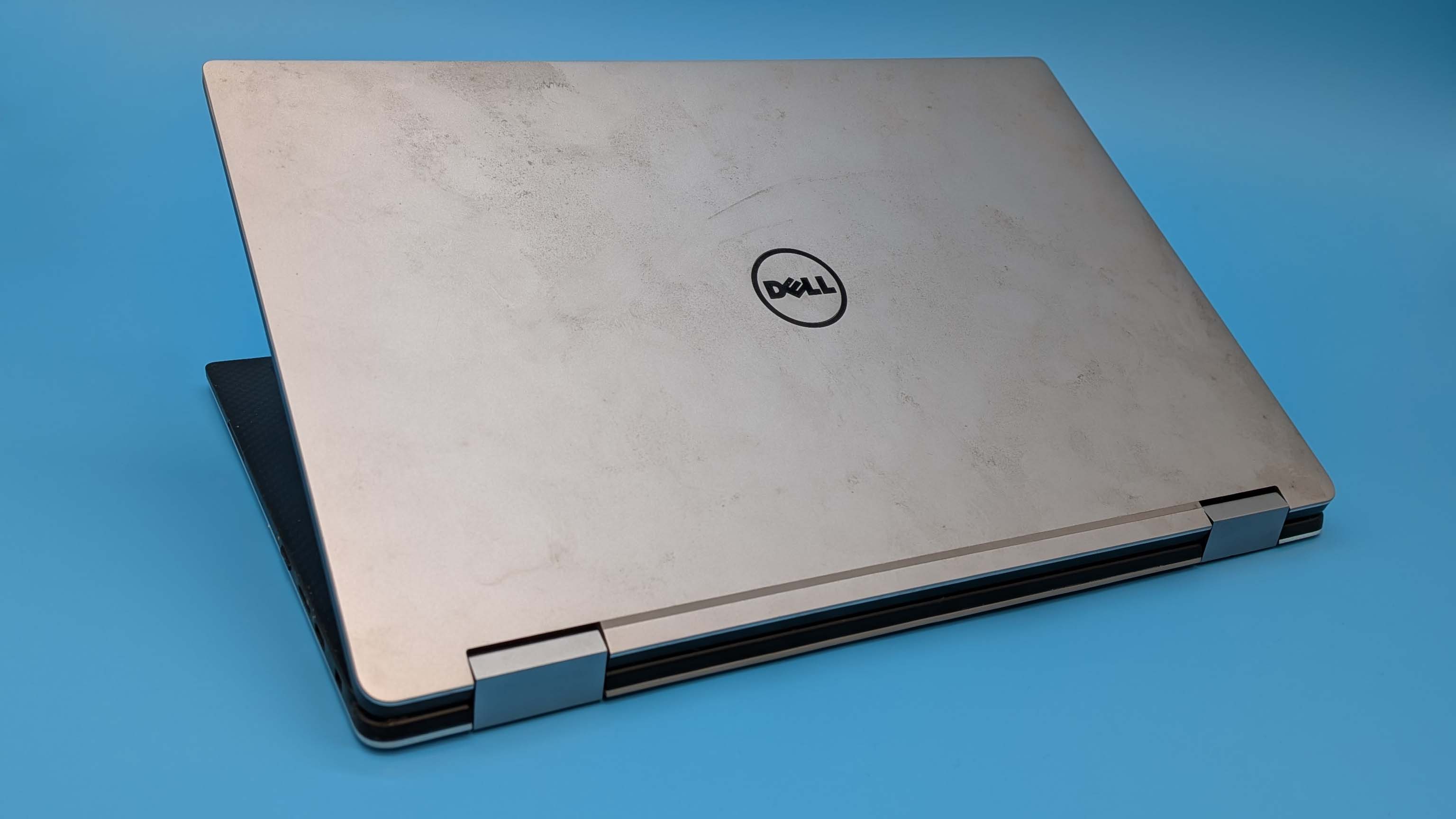
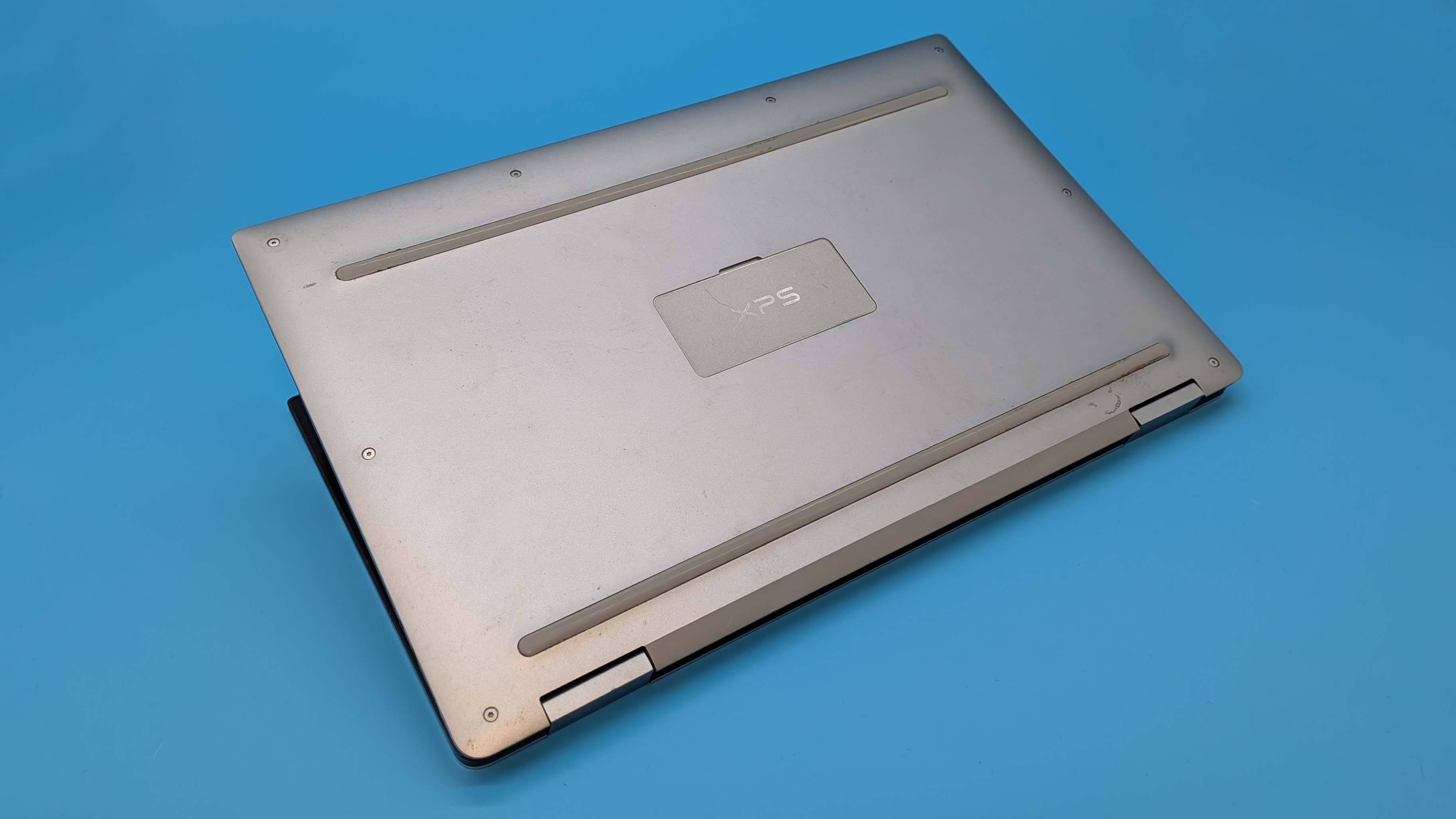
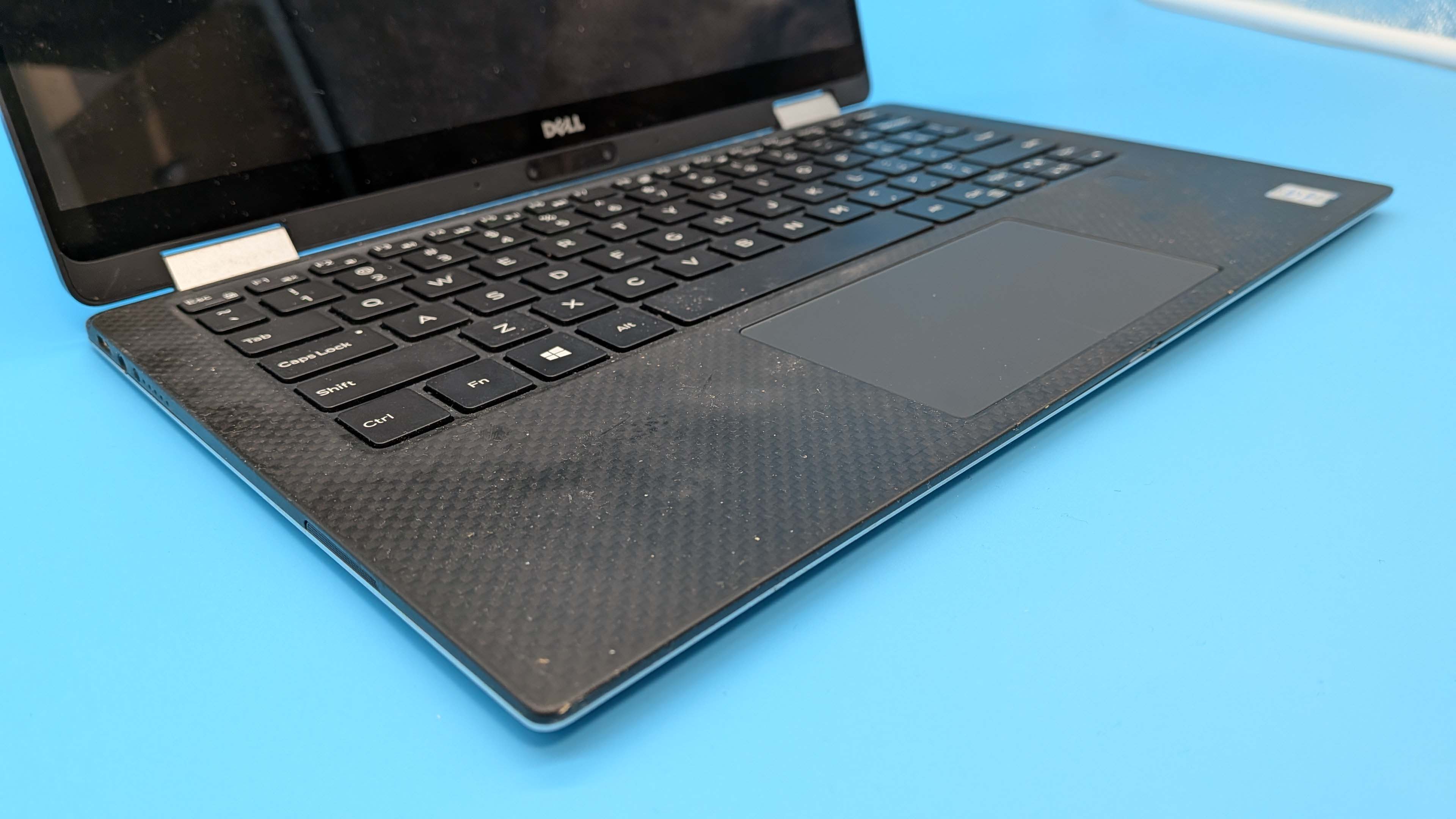
I am surprised at just how damned grotty this thing is. I pulled the old XPS laptop out of my wardrobe because I've started wearing cardigans and have therefore become a bit of a Linux bore. I was keen to see whether I could resurrect an old system—whose end times had come regarding shifting to Windows 11—with a lightweight Linux distro.
It's sticky. And, I think, kinda moldy. And I'm not certain how that can happen to a laptop and it still turn on. Seriously, there really is something odd about the material Dell used around the keyboard of this ol' thing, and it hasn't dealt well with the intervening years in solitary isolation. But a little isopropyl and this thing is going to feel good as new. So, here we are with a resurrected little Dell XPS 13 2-in-1 that now feels far more zippy and sports a way better battery life than it had back in the Windows 10 days of mid-2019. Well, it does sometimes, but as I found out, time is a harsh mistress on Li-Polymer batteries.
I'm writing this piece right now on the ancient Dell machine and the system feels snappier than it has any right to with just 8 GB of LPDDR3 memory. And I've not made it an easy task, either, because I'm doing this on a 2-in-1, and Linux does not have the best history of touchscreen support.
But I will say things didn't look good when I first tried to boot up this old XPS.
Powering the device on with a power cable connected and I'm confronted by a series of solid pages of colour cycling through on rotation. Eep. Moldy laptop looks like it's got a dead LCD.
Having done a bit of research, it seems like these old XPS machines will go into this sort of display debug page if there's an issue with the monitor panel or electronics, but there were a few things to try and see if I could get past it. Which I tried. Unsuccessfully. I power cycled the laptop, and it was still screwed. I unplugged the battery itself, and powering on it was still screwed.
But then I came across a buried reddit note about how the debug mode can appear if you hit the 'D' key during boot. Now, obviously I wasn't doing that myself, but the suggestion that turning off the machine and hammering that key a whole bunch of times before rebooting started making sense. Especially as I was looking down at the unpleasantly sticky mess that is this li'l laptop.
And, sure enough, brutalising the 'D' key to unstick it actually worked.
A relatively short time later and the surprisingly unfamiliar Windows 10 desktop greeted my peepers. It's been a while since I last touched a Windows 10 device, and I'd forgotten what it was like. Now, I've not become a Linux bore because of any deep-seated antipathy towards Microsoft, and don't really bear any ill will towards Windows 11 at all. But I was surprised at how old Windows 10 looks to my eyes.
I will say, however, that after a full day of updating the essentially deprecated OS as far as I could go the old XPS 13 was still surprisingly capable. Open up a few Chrome tabs too many and you'd know about it, but other than that it was already more effective than I expected from looking at the System report.
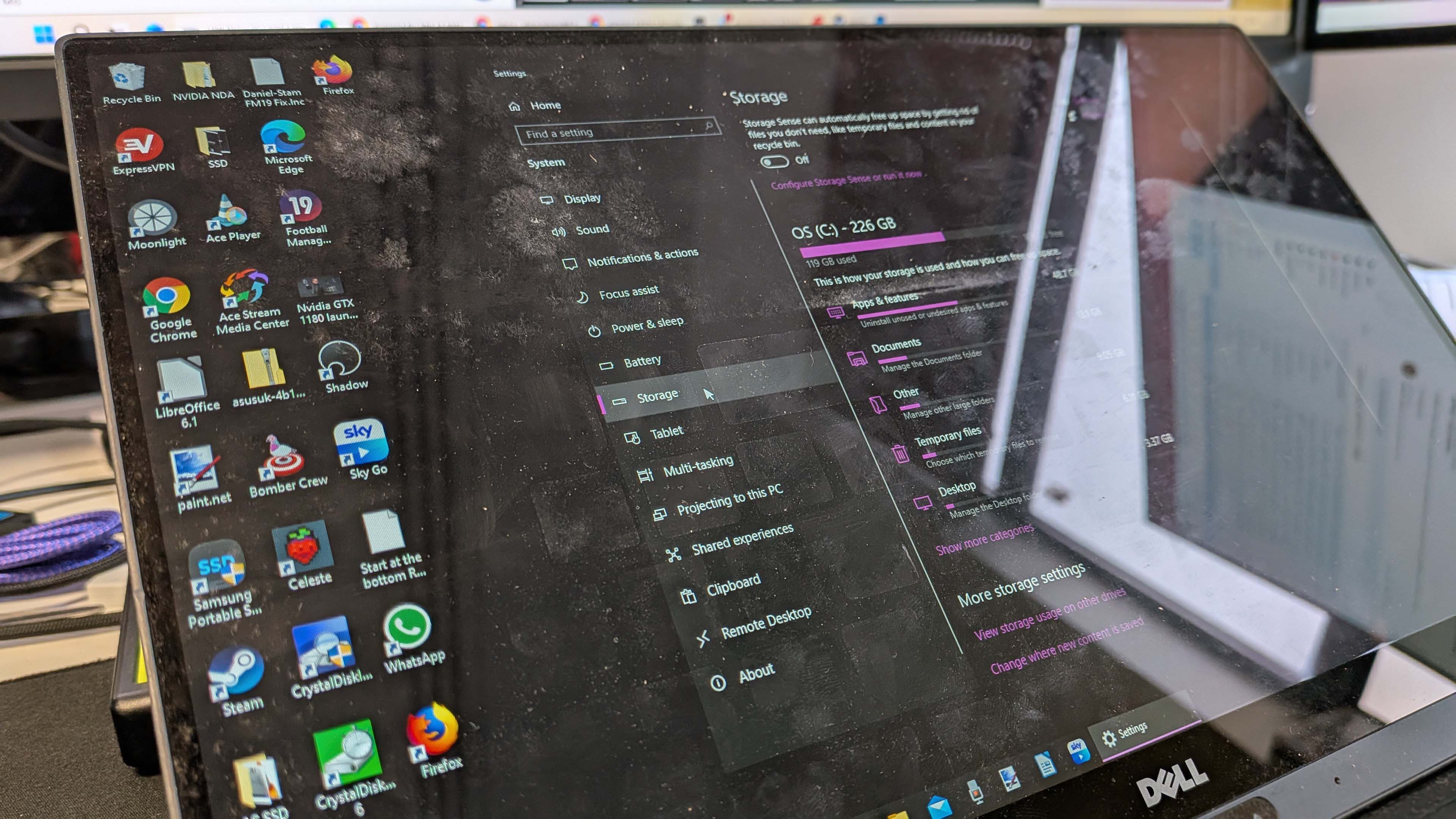
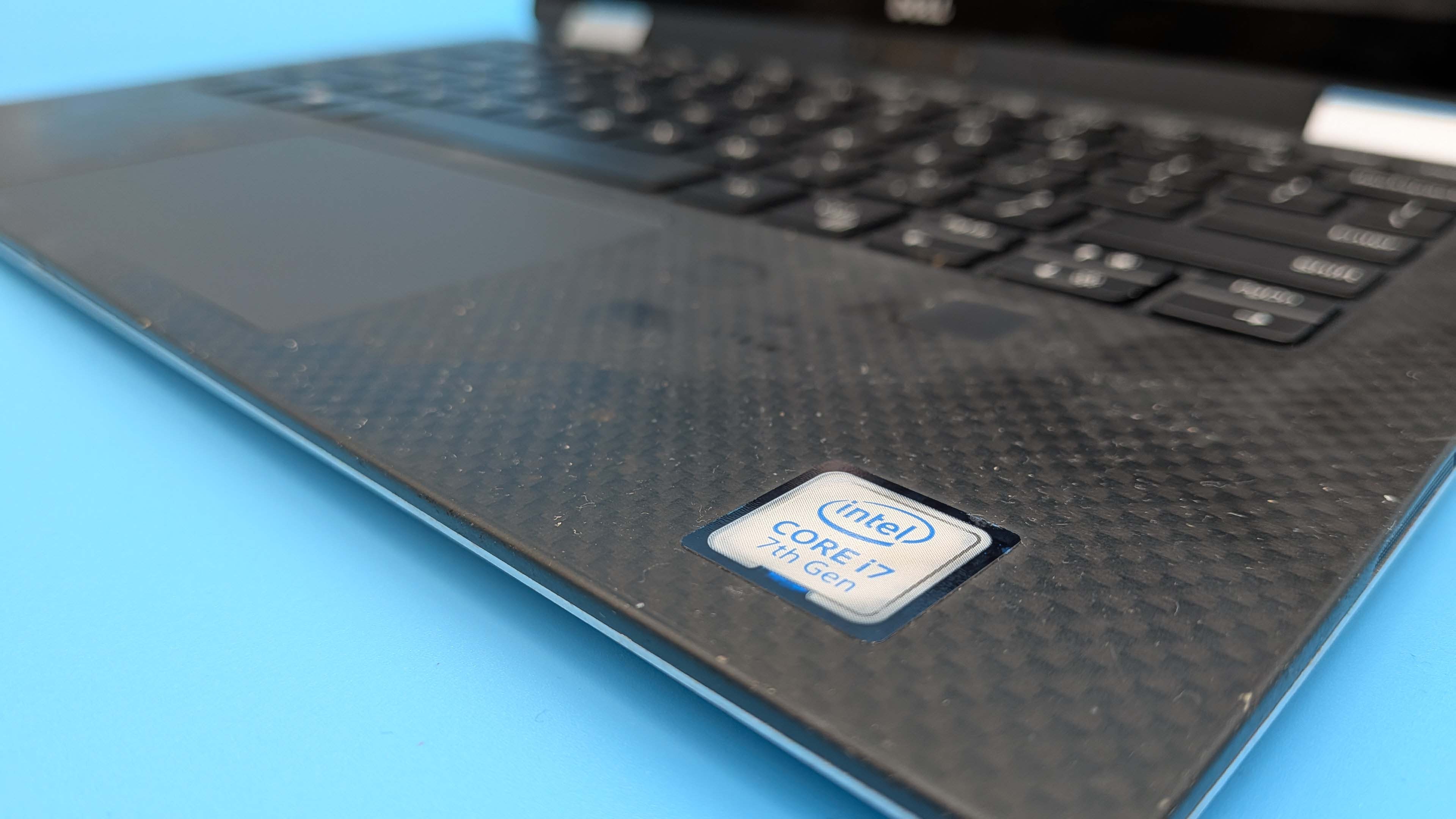
This thing is rocking an Intel 7th Gen chip, a Core i7-7Y75, from 2016. Aside from being a decade old now, it was already a relatively low-rent, low-power chip back at its launch. It's a dual-core processor with a clock speed of just 1.3 GHz (oof), though with a boost clock of 3.6 GHz.
And yet it's still a perfectly functional little browsing, media watching device. In the interests of sustainability, then, let us bring it up to date.
Where any switch to Linux can live or die is in the distro choice. There are simply so many, and so many options within them. But I'm a simple man, and easily swayed by looks, and have been very taken with the Cosmic desktop (tiling for the win) created by System76 for the Pop!OS distro I use on my Blade 14 laptop. But I wanted an immutable distro so I didn't end up breaking this poor old thing needlessly.
And you know what else it can do? Sleep.
So, I eschewed people smarter than I recommending more lightweight Linux options in favour of Origami Linux. And with just one hiccup, it installed with ease in lightning speed.
That hiccup? Well, remember the whole thing about USB Type-C being able to be plugged in whichever way you choose? That's a lie, by the way. While the plug is indeed symmetrical, the electronics are not, and my old USB-C hub, which I used to give the XPS 13 a Type-A port for the purposes of installing Origami, needed swapping around before it could find the USB stick with the Linux installer on.
Props to Jacob for reminding me of that as I sat at my desk cursing at the machine.
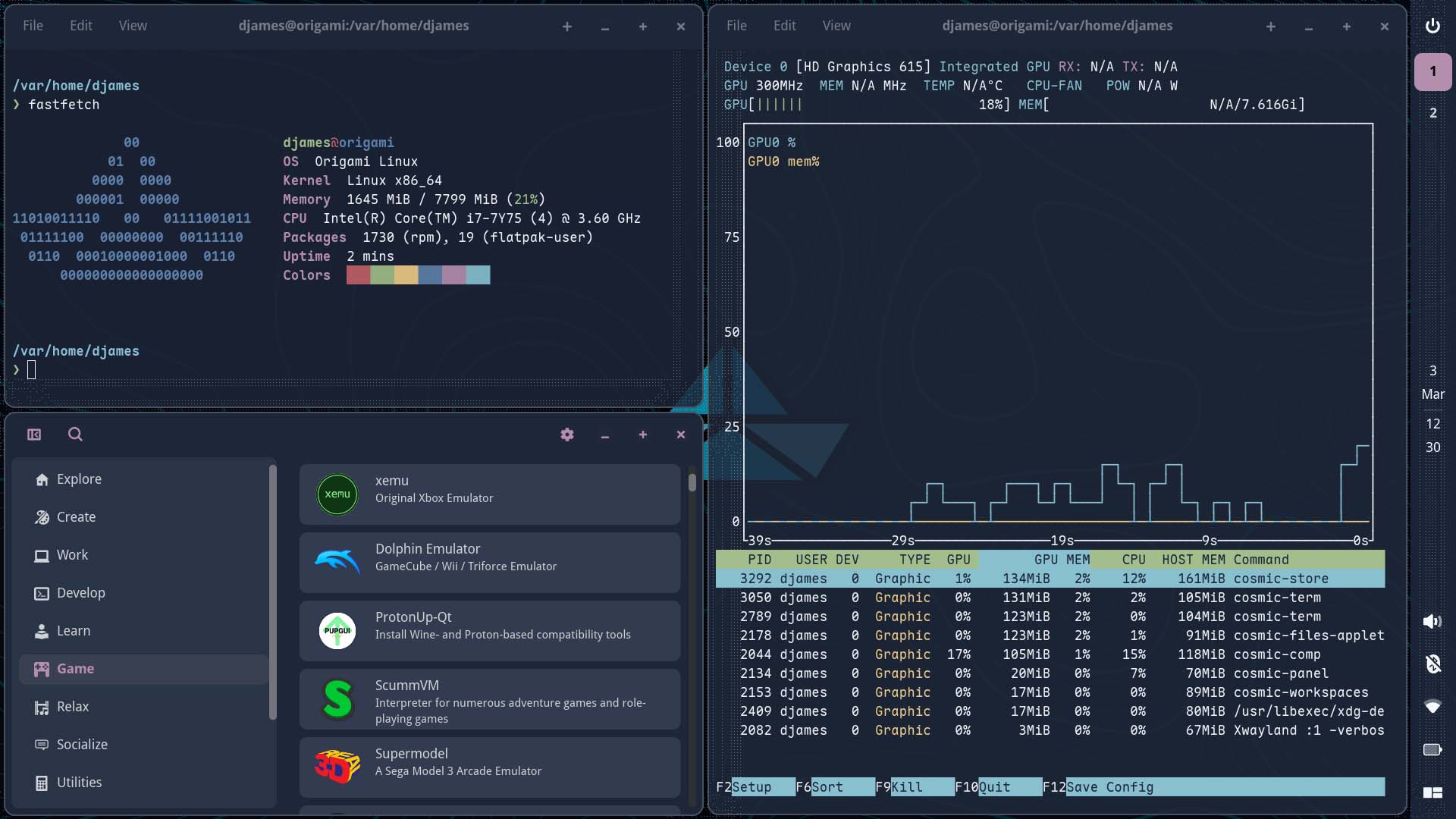
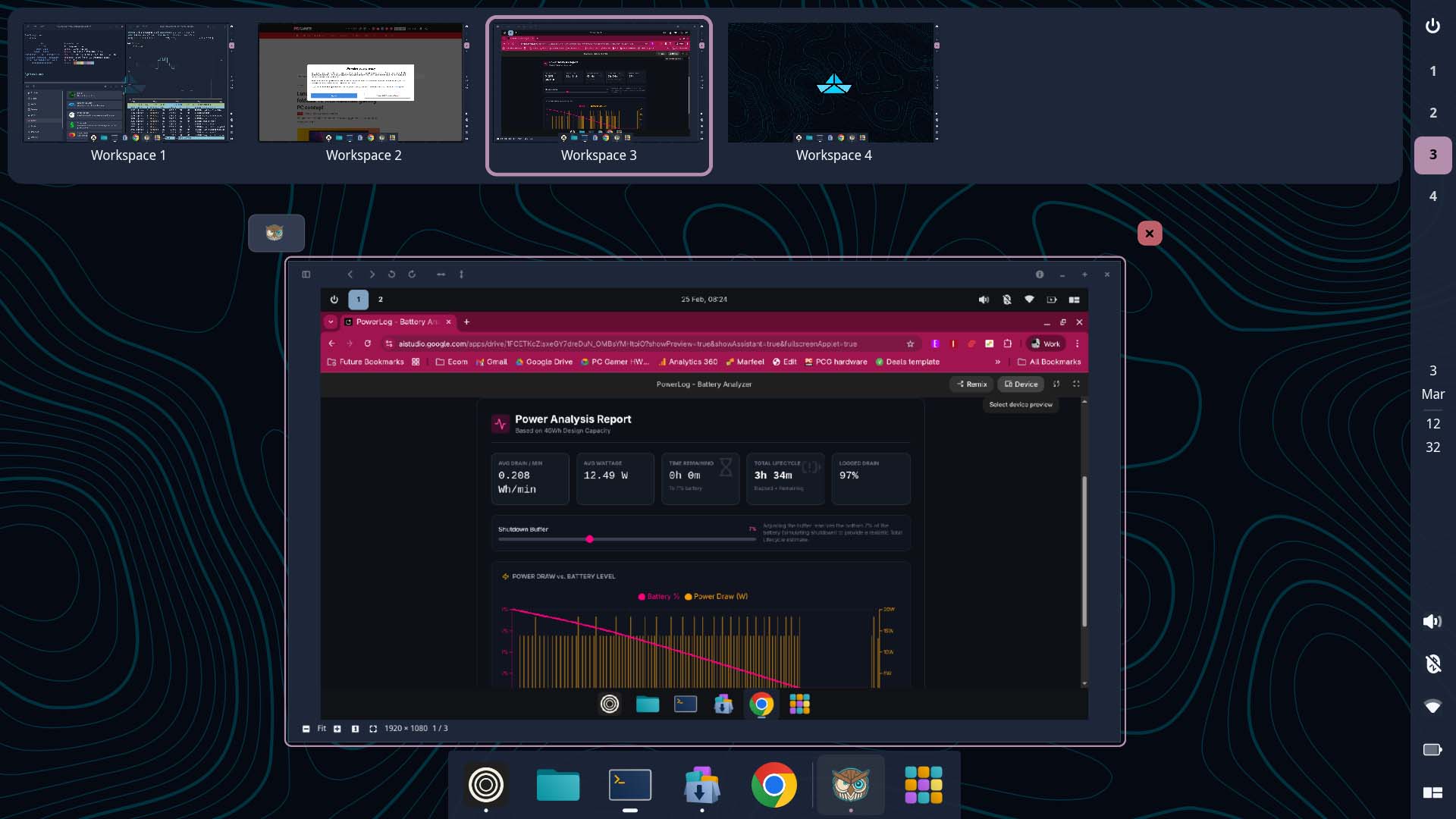
Origami is a good-looking OS (thanks to that Cosmic desktop environment) and even just the simple fact I can shift the panel to the side rather than take up precious vertical desktop space on this 13-inch 1080p display makes a surprisingly big difference. Take that, you immovable taskbar of Windows 11.
I've also been using workspaces on Windows for a while, especially when I'm on my laptop with a solitary screen for comfort. But sliding between full desktop displays is so much zippier on Linux, and Origami is even able to do it with this 10 year-old weak-heart Kaby Lake CPU.
And you know what else it can do? Sleep. That's something that's made such a difference switching my laptops over to Linux, actually being able to close the lid, go away for a day or so, and come back to flip it open again and easily resume where I was without running the battery dry. Or actually just having to reboot.
That's my consistent sleep/resume experience with Microsoft's OS, and Linux has effectively banished it.
But it's not even just about aesthetics and core functionality, I'm actually getting a healthy extra level of battery life out of this ageing machine now that I've swapped for Linux. Using my own little battery life tester app, I'm seeing just over two hours in total battery life in Windows, with between 20 and 22 W power draw over that time.
Origami dropped that power draw to just 12.49 W on average over the time I was testing, and meant the system—while playing the same live TV stream over Wi-Fi at 50% screen brightness—lasted nearly three hours instead.

But you know what sometimes happens to decades old laptops? Their batteries die. Sadly that's now the case with this ol' XPS 13. Because while on different battery life tests I'm getting two hour 45 mins or nearly three hours sometimes, I've also seen the battery sometimes go down to 60% charge and then suddenly drain all the way to zero.
That just happened while I was writing this, too. I put the machine aside to tackle another task, putting the machine to sleep on 64% battery knowing that I could just pop it open again in half an hour and be ready to go. But… it wasn't. I opened the lid to see the battery suddenly down to 1%.
So yeah, this battery is toast, and now I can't trust it. Which is a really sad end to this story, because, as you can see, for a while I was super excited to see the state of this old device given a new life, now sadly taken away. Thankfully, though, this era of XPS 13 still gives you easy access to the battery, and replacing it with a fresh one is a simple matter of dropping $30 on a new battery and a little light screwdriver work. Sustainable laptopping win.
All is not lost, then. Now, what does need to be lost is the mold on this chassis, and maybe I can even see it blossoming on the screen itself. Now, where did I put that isopropyl?
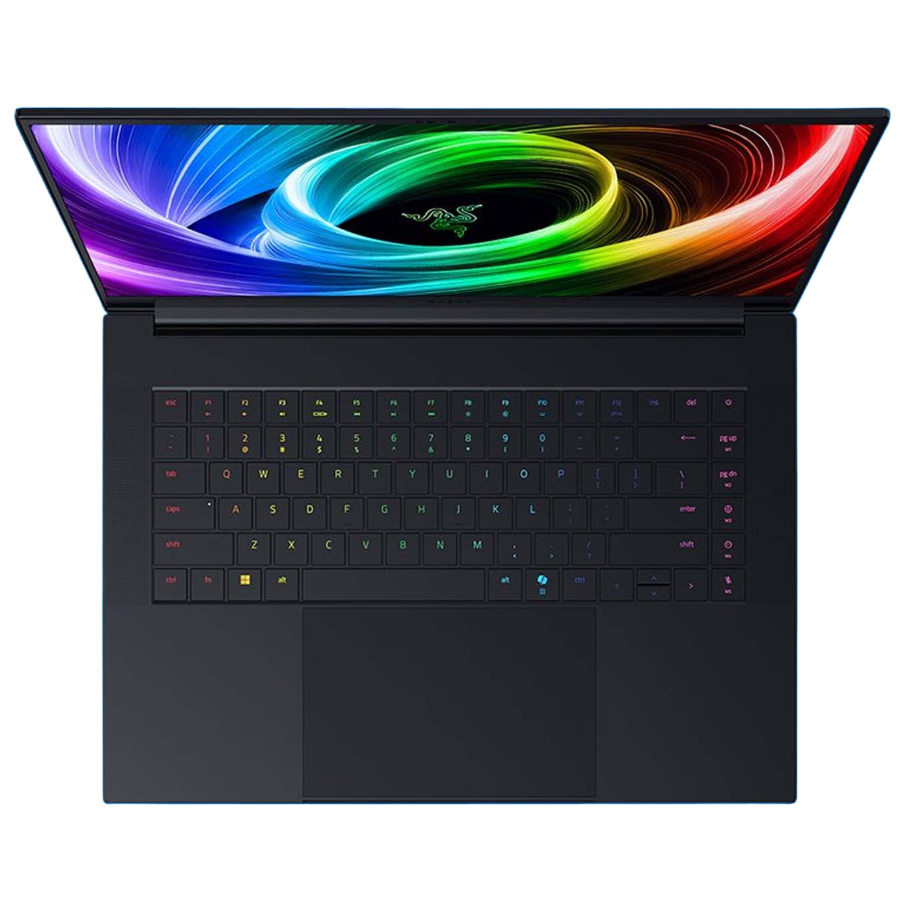
1. Best overall:
Razer Blade 16 (2025)
2. Best budget:
Lenovo LOQ 15 Gen 10
3. Best 14-inch:
Razer Blade 14 (2025)
4. Best mid-range:
MSI Vector 16 HX AI
5. Best high-performance:
Lenovo Legion Pro 7i Gen 10
6. Best 18-inch:
Alienware 18 Area-51

You must confirm your public display name before commenting
Please logout and then login again, you will then be prompted to enter your display name.