


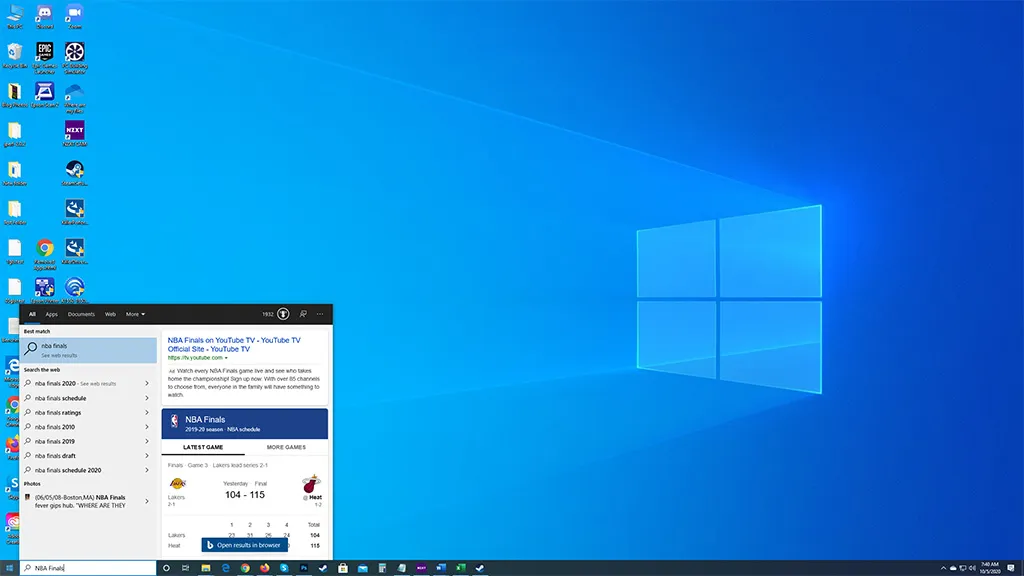
Microsoft has a tendency to force feed its services and technologies onto users by baking them into Windows 10, like its Edge browser, antivirus scanner (Defender), and Bing search engine. It is easy enough to find alternatives, except with Bing, which attaches itself to local search results in Windows 10 like a headcrab. Fortunately, there is a way to remove it.
Granted, not everyone will want to extricate Bing from local search queries. It can serve as a handy way to fetch information without invoking your web browser of search. Typing "Covid 19" into the search bar, for example, brings up several potential relevant search results, as well as a list of stats in your area. Likewise, if you are curious whether the Heat or Lakers won last night, just type "NBA Finals" into search and you will get a quick-hit answer, with the final score.
On the flip side, this can also be annoying if all you really want to use the search bar for is to look up files on your local disk drive(s). Starting with Windows 10 version 1909 (May 2019 update), you could disable Bing by poking your head into the registry and editing the "BingSearchEnabled" value.
But as suddenly as Microsoft gave this functionality to users, it then took it away in a later update.
That's the bad news. The good news is, there is a new "DisableSearchBoxSuggestions" value that pretty much does the same thing. The only difference is it goes a step further and gets rid of ads from search results too.

The downside to this is you have to muck around in the registry, and if you are not careful, you can break things. Before proceeding, it is a good idea to back up the registry.

Best gaming mouse: the top rodents for gaming
Best gaming keyboard: your PC's best friend...
Best gaming headset: don't ignore in-game audio
Once you are ready, type "regedit" into search and then open the Registry Editor app that appears. In the left-hand column, expand the Computer tree and navigate to HKEY_CURRENT_USER\SOFTWARE\Policies\Microsoft\Windows\Explorer. If the Explorer folder does not exist, create one by right-clicking on Windows and select New > Key, then name the folder Explorer.
From there, right-click the Explorer folder and create a new DWORD (32-bit) Value and name it "DisableSearchBoxSuggestions" (no quotation marks). Double-click the new entry, change the value from 0 to 1, then exit the registry and reboot your PC.
That is all there is to it. Should you later change your mind, just go back into the registry and delete the entry you created. No harm, no foul.
Thanks, Windows Latest

